Select regions
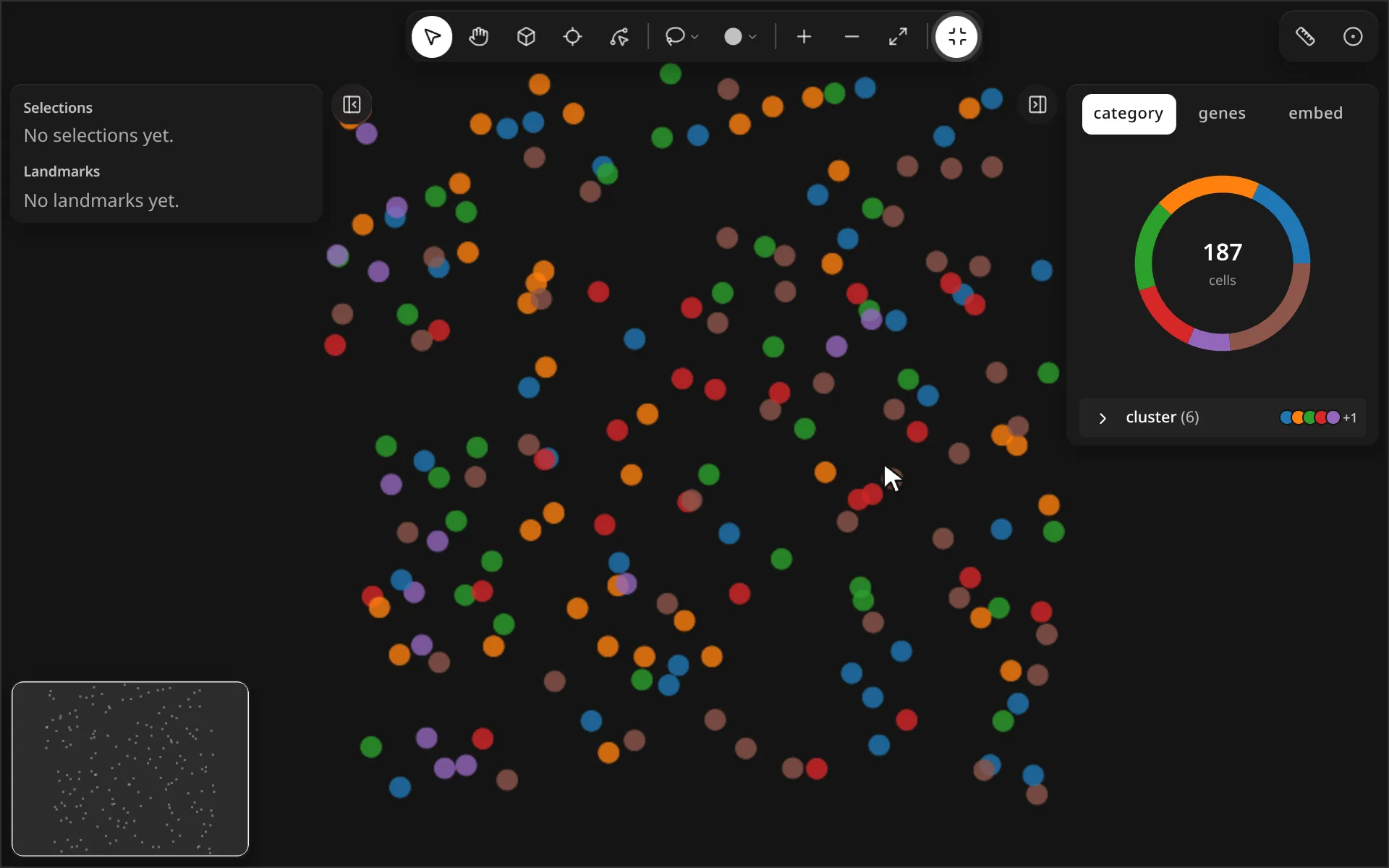
Draw a lasso, square, circle or shape around cells, then read the selection back in Python.
import milume
w = milume.peek(adata)  # press L, then drag around some cells
sel_id = w.selections[-1]["id"]
Controls
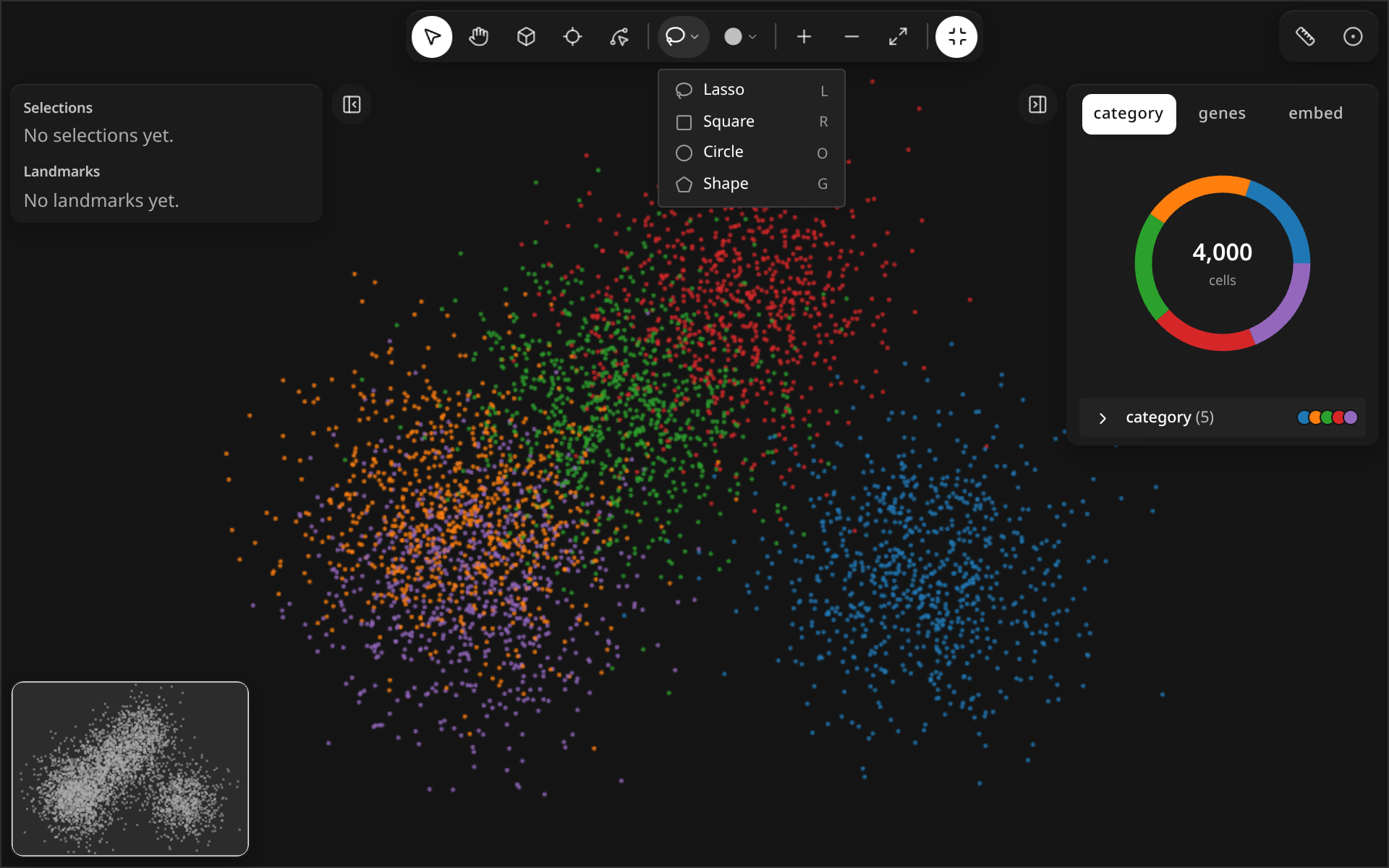
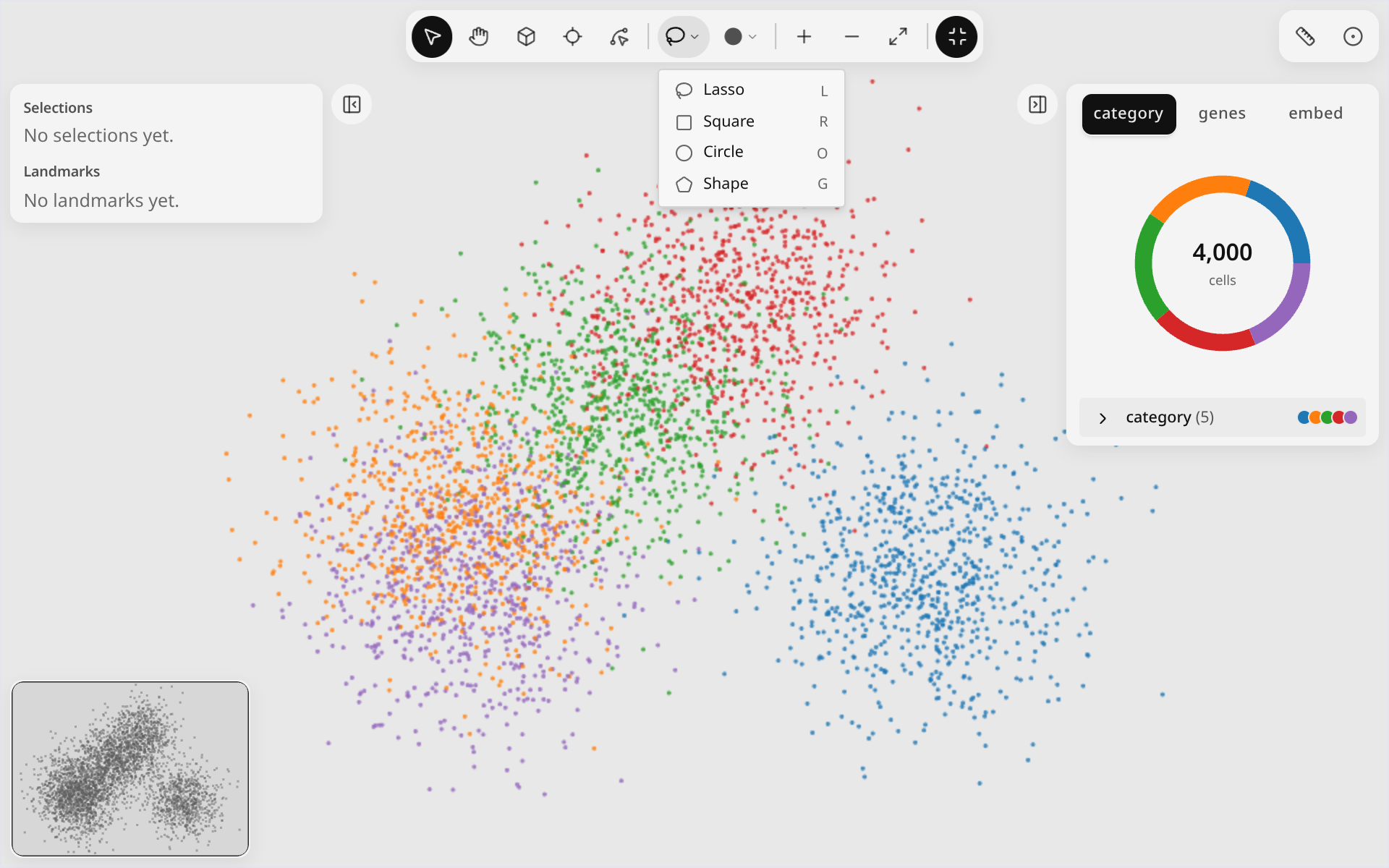
The four selection tools share one toolbar button. Click it to arm the last-used tool, or right-click it to pick another.
| Control | What it does | |
|---|---|---|
| Lasso (L) | Drag a freehand outline. | |
| Square (R) | Drag a rectangle. | |
| Circle (O) | Drag an ellipse. | |
| Shape (G) | Click vertices of a polygon; press Enter to finish. | |
| Shape menu (right-click) | Choose which of the four tools the button arms. | |
| Layer actions | Rename, hide or delete the selection from the layers list. |
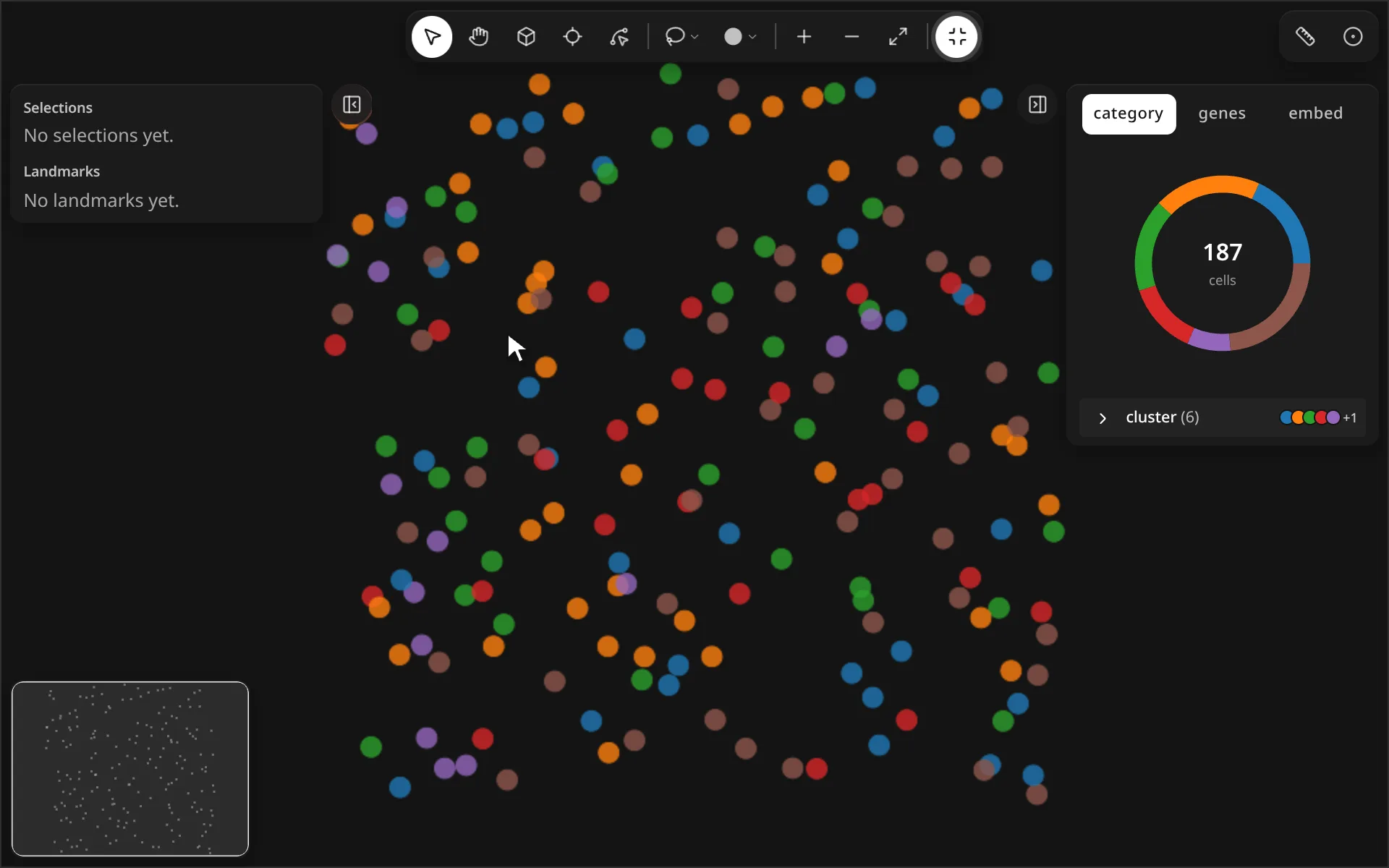
Square and circle
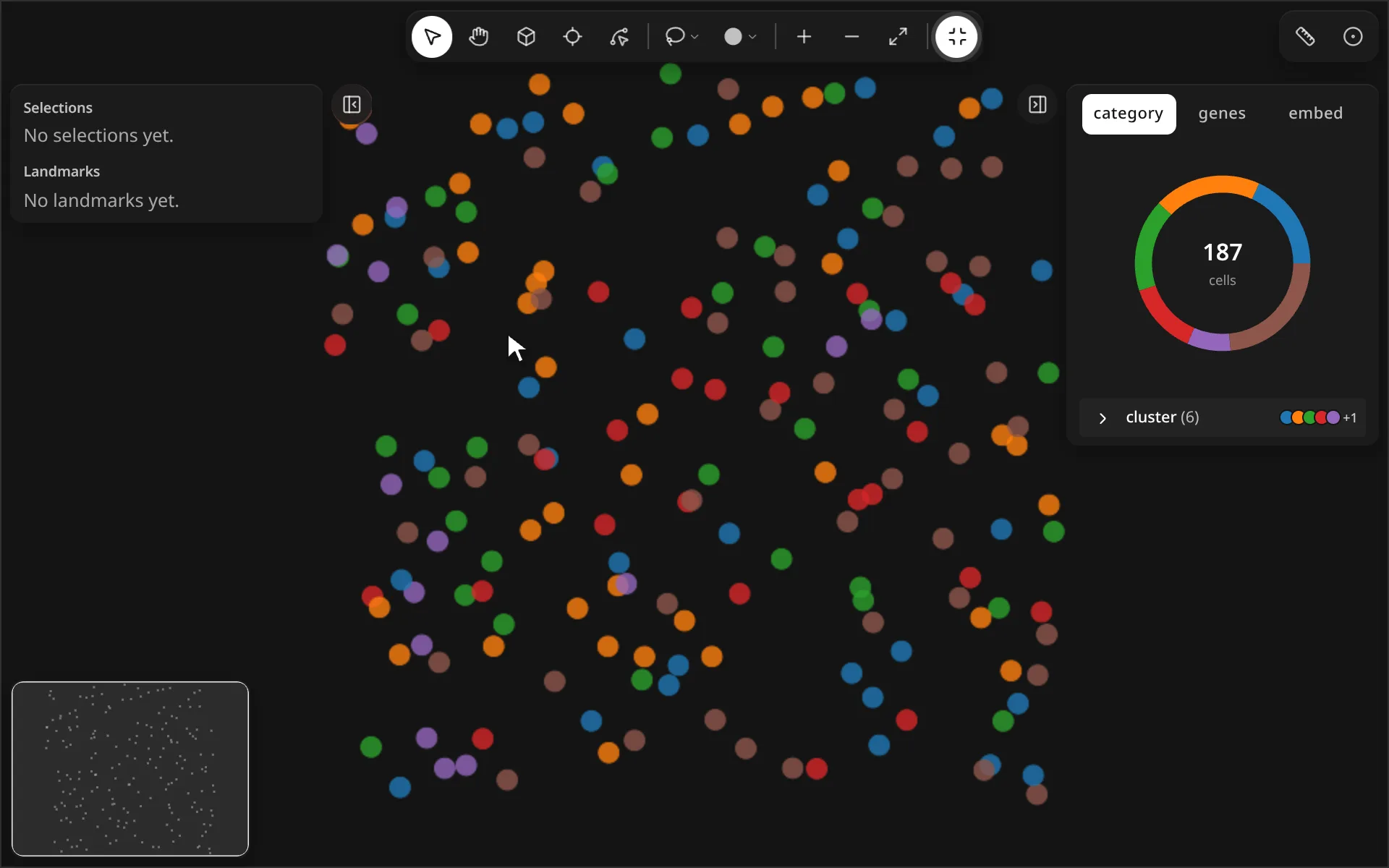
While a selection is active
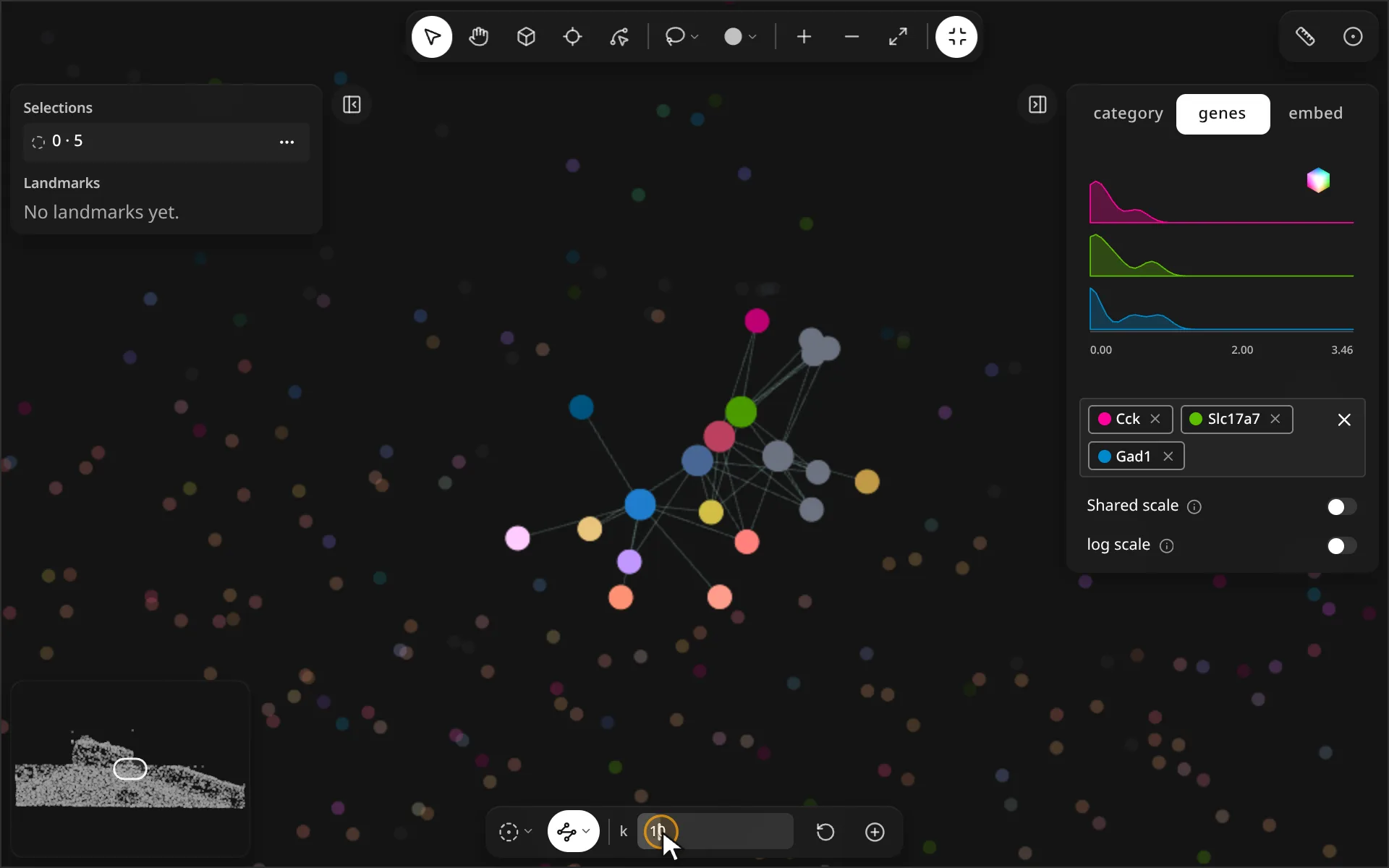
The cells inside stay at full color and the right panel counts only them. A small toolbar at the bottom of the map offers Radius neighborhood and k-NN neighborhood around the selection, with Make selection to keep that neighborhood as a new selection. Press ⌫ or Delete to remove the active selection.
Python
w.selections updates on every edit. Join hits to observations by name:
hits = w.get_obs_names(adata, sel_id)  # obs names inside
w.assign_obs_mask(adata, "in_region", selection_id=sel_id)
w.clear_selections()
See Methods for the full signatures.